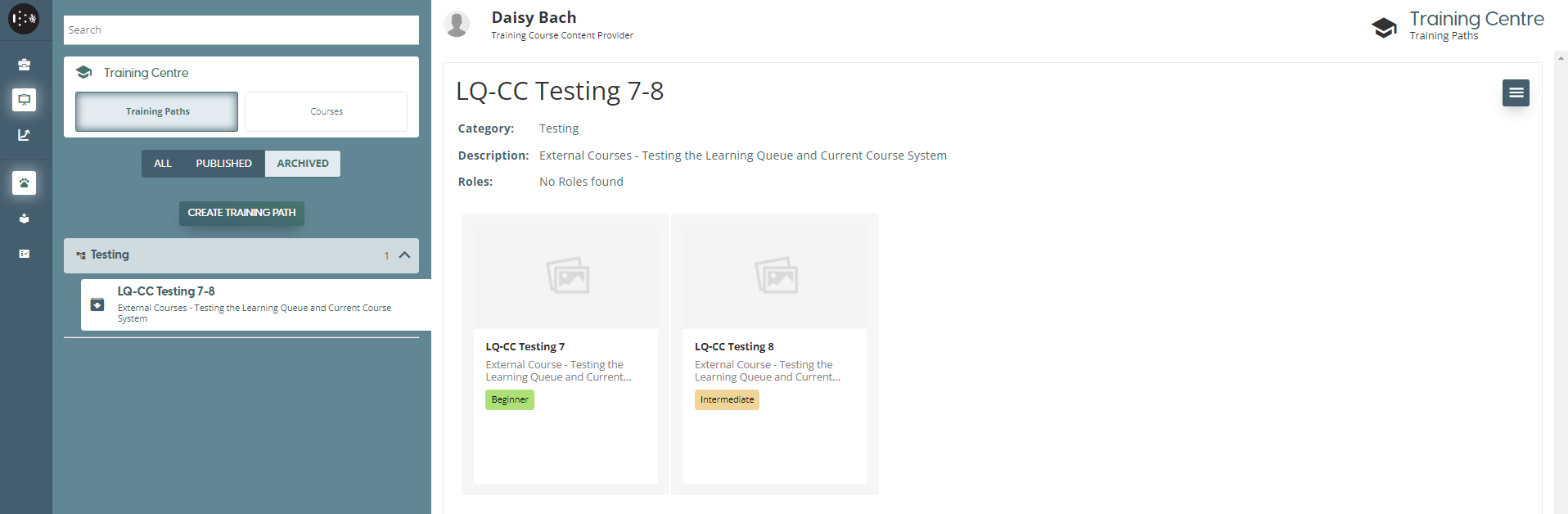
Course View & Training Path View
LearnNow Portal > Training Courses
Description
As a content creator, I want to be able to manage courses and training paths views.
Applicable User Roles
List of roles that have access or can use this feature.
Content Creator
How To
Courses View
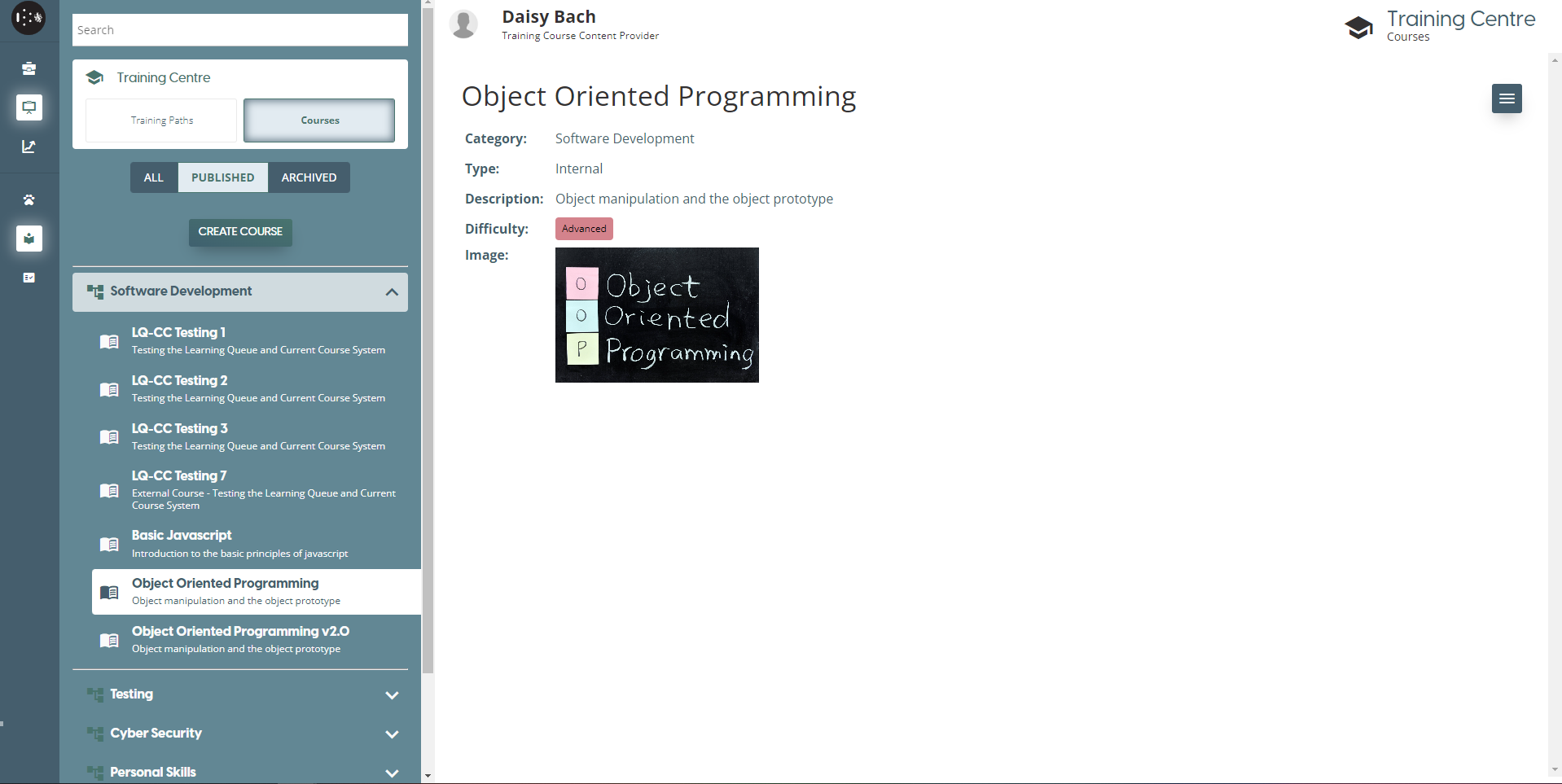
Courses allow for training to be delivered to content consumers. Each course contains at least one module, and each module must contain at least one item of material, such as a video link of PDF file. An individual course can then be assigned to a content consumer for learning, or courses can be grouped up together.
Courses can exist in one of three states: in Draft indicated by a wrench icon, Published which is represented with an open book icon and Archived represented by a box with a down arrow.
How to create, edit and publish a course
Depending on the state of the course, the options presented in the burger menu (☰) will be different. In the Draft state, you have to options Edit Course, Delete Course, Preview Course and Course Contents.

Edit Course
Edit course will take you to the course editor window of that particular course, where the course can be edited or published. Delete course will bring up a confirmation window to confirm you want to delete the course, and if you select yes the course will be permanently deleted from the platform. I.e. there is no ‘undo’ functionality and to reinstate the course you will need to recreate it.
Course Contents
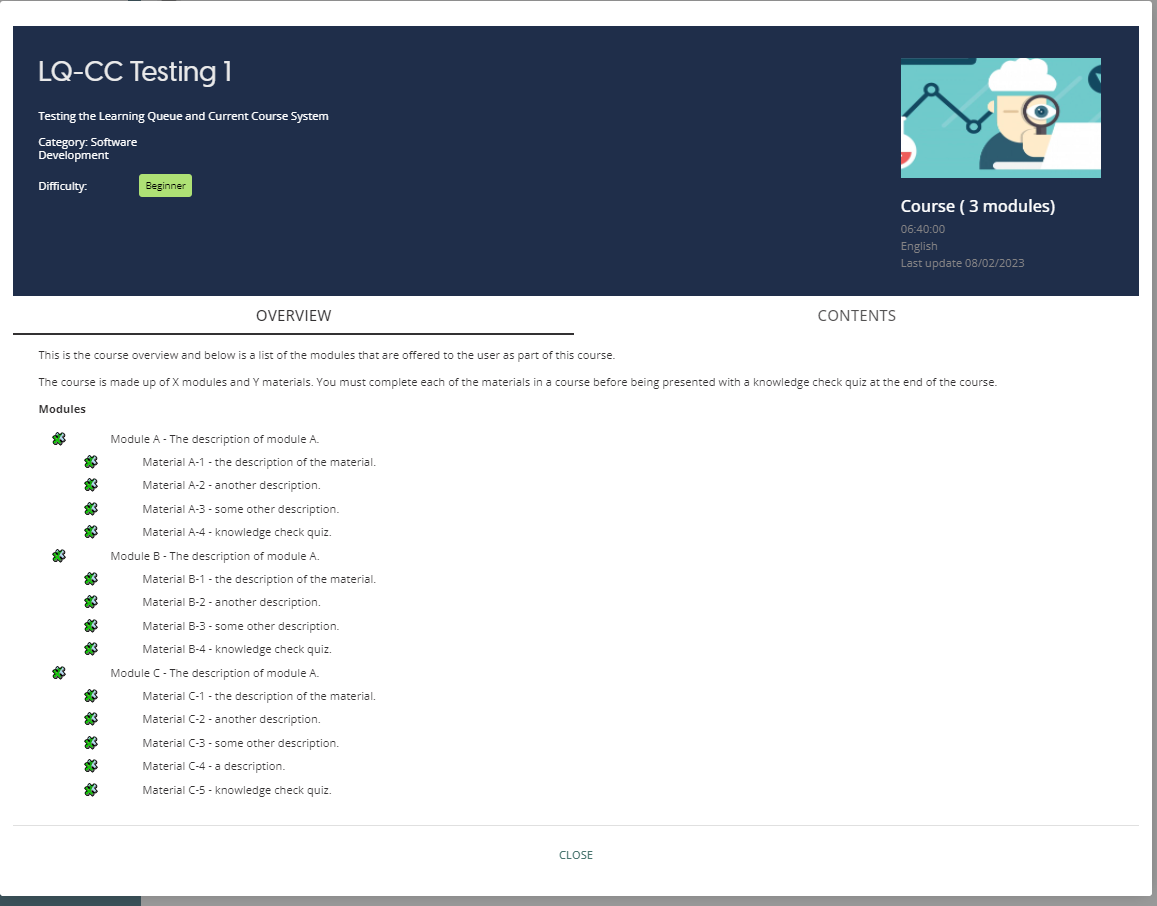
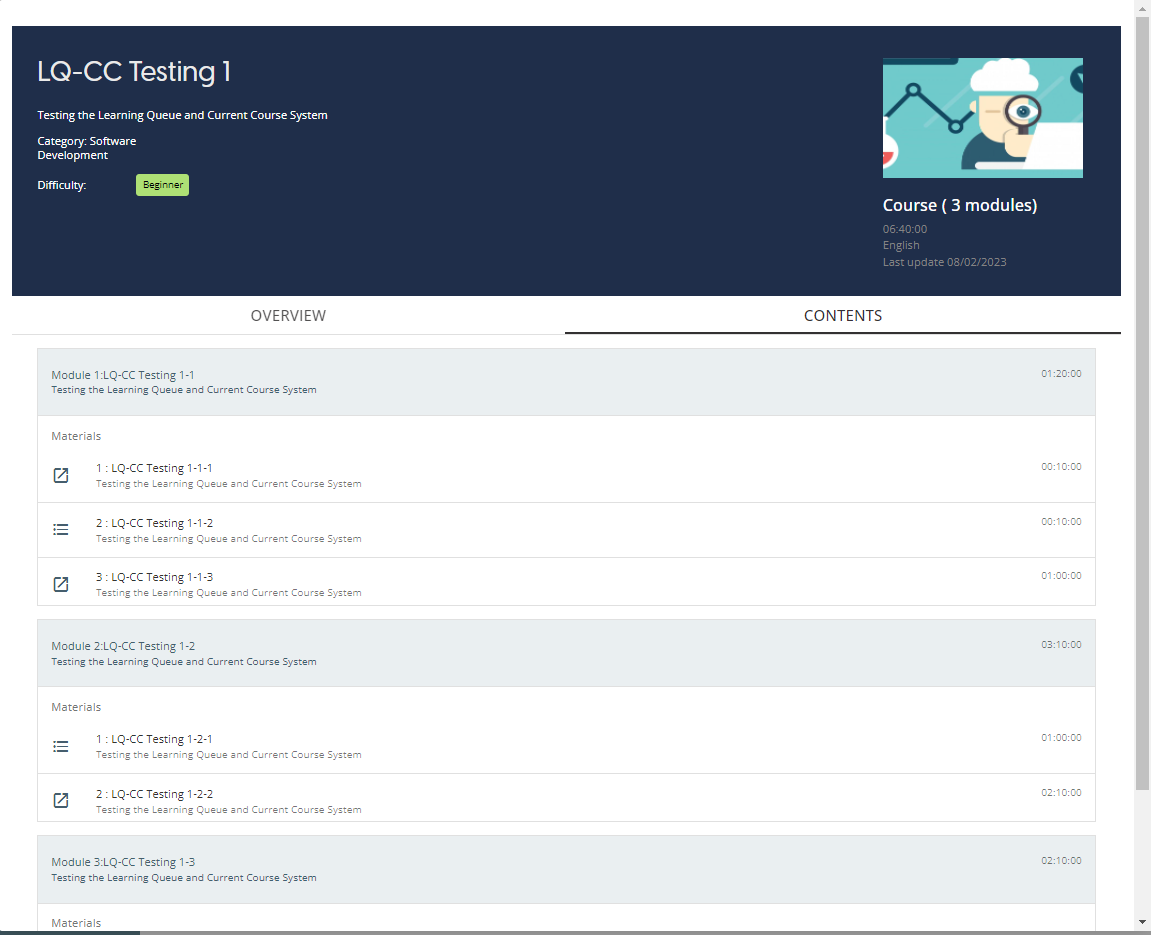
The Course Contents option will bring up a window where you can see the course overview, as well as see the modules and materials contained within the course and the estimated time to complete each one.
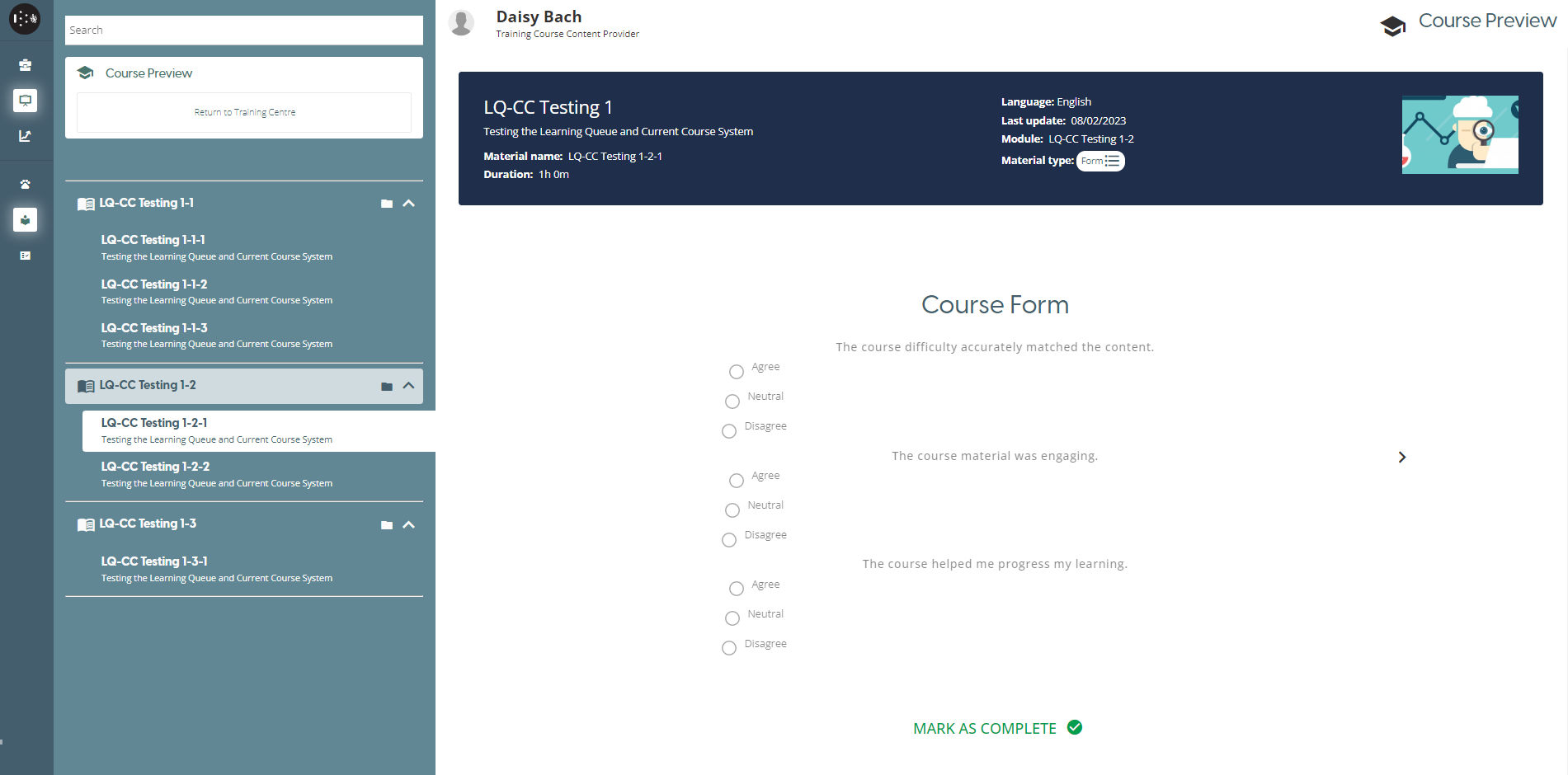
Course Preview
The Course Preview option allows you to view the course as the user sees it. This allows you to preview the course material and check it is being presented correctly so it can be completed as expected. The different modules can be navigated by either using the arrows in the module window or through the navigation menu to the left of the window. In order to return to the course list, press the “Return to Training Centre”.
The burger menu (☰) in the Published view has the Preview Course and Course Contents options, as well as Archive Course and Unpublish course.
Unpublish course changes the state of the course from Published to Drafts, which allows it to be edited again. Archive Course changes the course state from Published to Archived permanently , where the course cannot be assigned to users anymore. An archived course cannot be unarchived, and must be requested from the support team.

The Archive burger menu (☰) provides you with the option to Preview Course and Course Contents.

Training Paths View
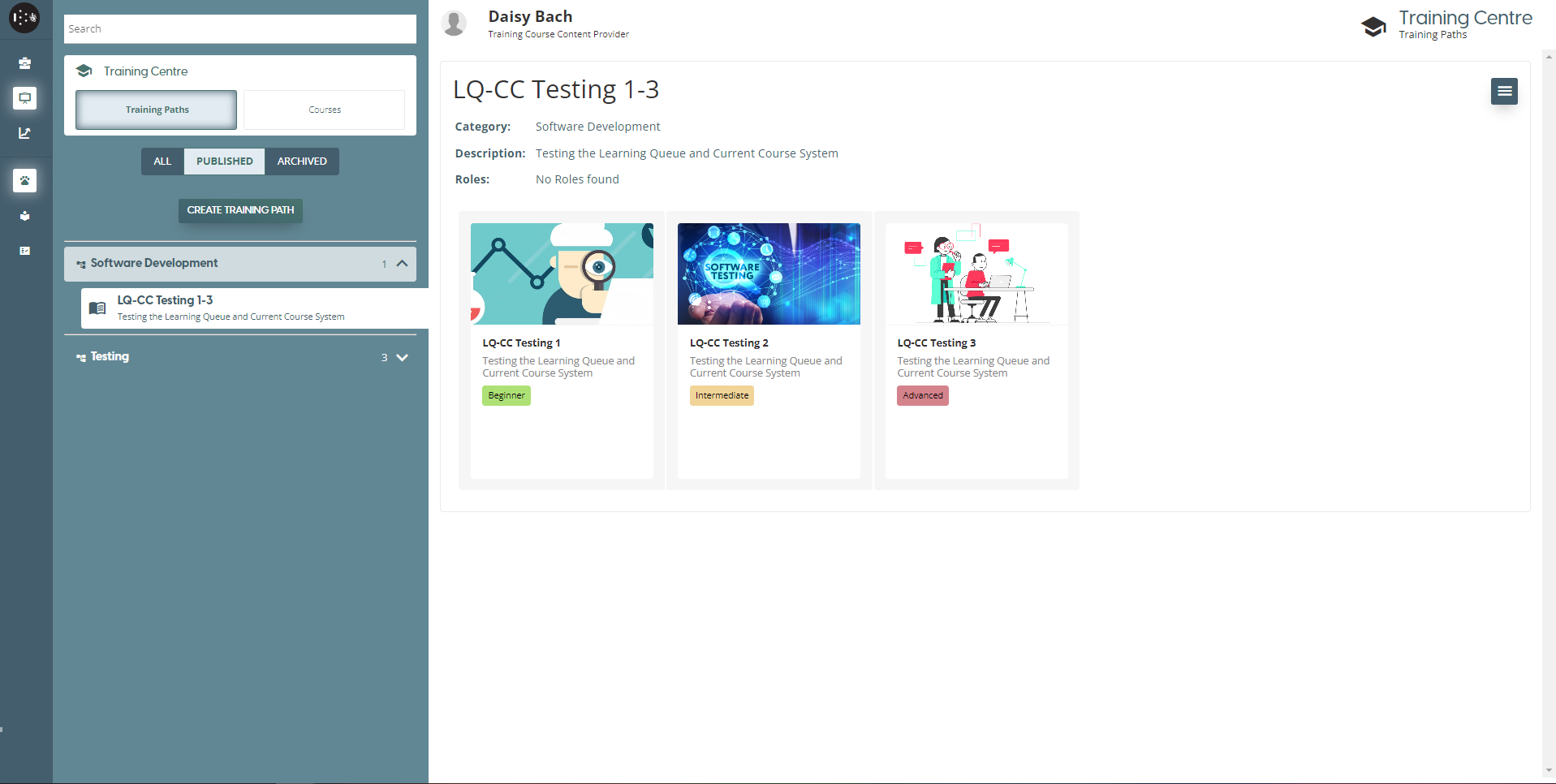
This page displays the training paths that are available for the company. A training path allows for courses to be grouped together for easier assignment to individuals or groups.
From this page new training paths can be created, training paths can be saved as drafts for editing later or archived. Like courses, there are three states a training path can be in: Drafts, Published or Archived each displayed with its respective icon. Like courses, if a pathway is archived, it cannot be unarchived.
To find out more details about a course within a path, you can click on the course icon to take you to the individual course page.
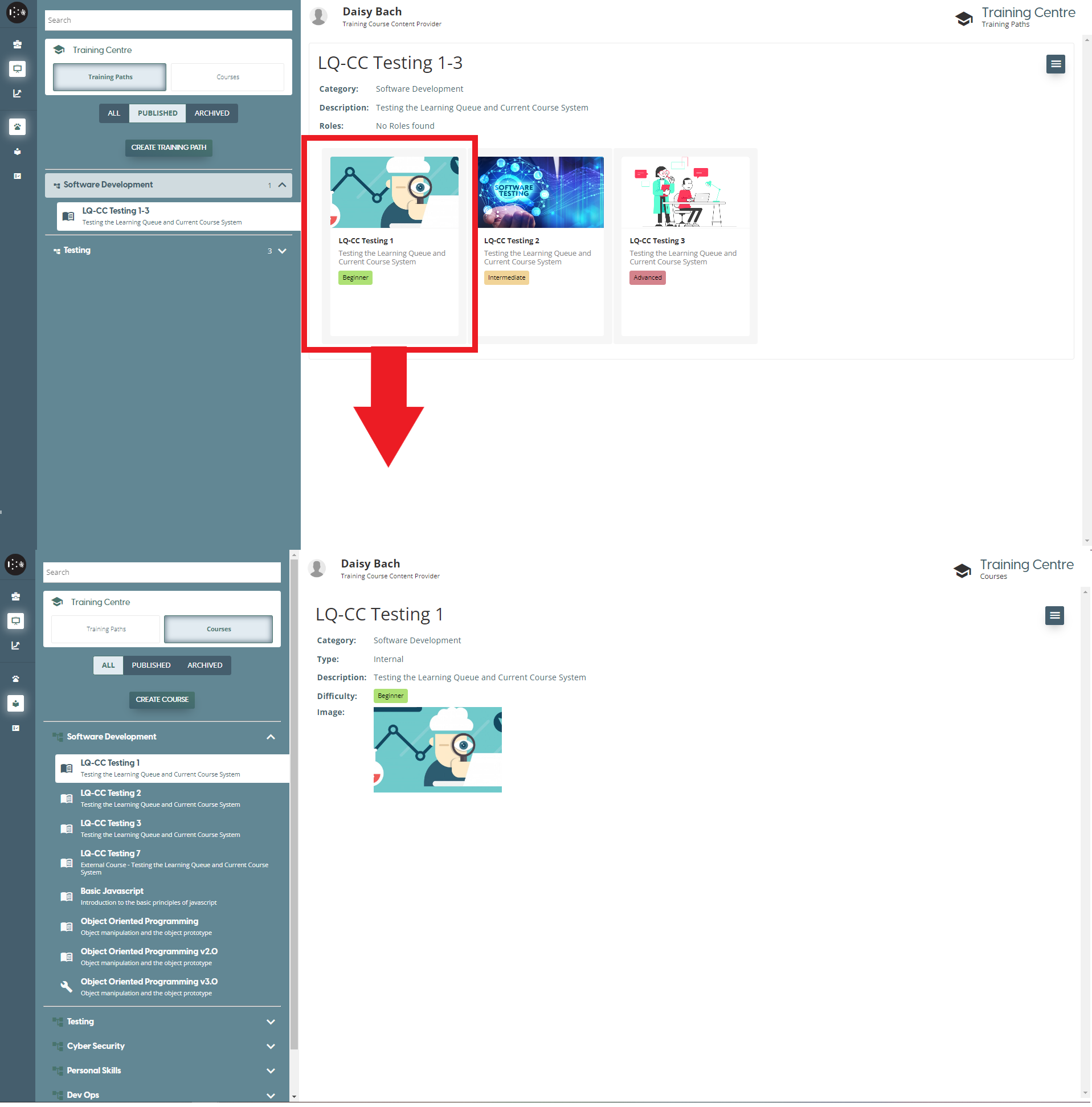
A training path in the draft stage can still be edited or deleted. Once a training path has been published, it cannot be edited or deleted but it can now be assigned to content consumers.
There is an option to archive any of the paths which have been published. In order to archive a training path, you must select the path you wish to archive first from the list. Once the chosen path is selected, you click on the burger menu (☰) on the right-hand side of the window and select the “Archive Training Path” option
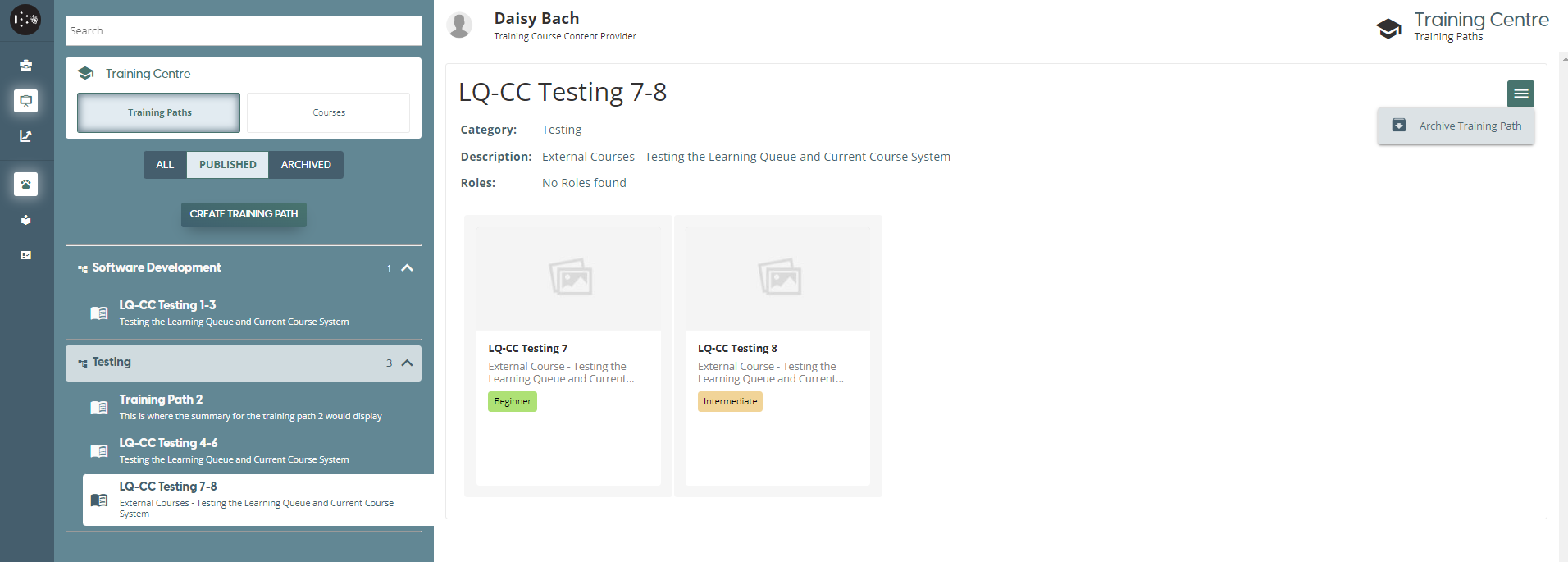
This removes the training path from being assigned to users but not deleted from the platform or from any users which have completed the path. The paths can be viewed by selecting the “Archived” filter.